Best 4K IPTV Subscription: How to Tell If It's Real 4K

The best 4K IPTV subscription is the one whose 4K feeds carry the bitrate and frame rate to justify the label — and the only way to know is to open the player's codec readout during a trial. A real 4K sports or event feed runs around 19.5 Mbps on HEVC Main 10. A 2160p tag attached to 4.5 Mbps is an upscaled relay. Budget a sustained 50 Mbps per 4K stream, hardware HEVC decoding on the device, and expect most live sport to be better at 1080p 50 FPS than at 4K.
The best 4K IPTV subscription is the one whose 4K feeds are carrying enough data to be worth the label — and on the pages selling them, that number is almost never printed.
Resolution is the easiest specification in this industry to claim and the cheapest to fake. A provider can push a 720p satellite relay through a hardware scaler, rebroadcast it at 3840x2160, and every player you own will report it as 4K. The frame size is real. The detail is not.
So this page is not a ranked list. It's the set of measurements that separate a 4K subscription from a 4K sticker, the bandwidth and hardware that real 4K actually costs, and the two or three situations where paying for 4K is the wrong call. The general question of which provider to buy from — billing terms, credentials, trial length, recourse — is covered in the wider buying guide. This one stays on the pixels.
Here's the short version: three numbers, read together, in a player that will show them to you.
What 4K actually means on an IPTV stream
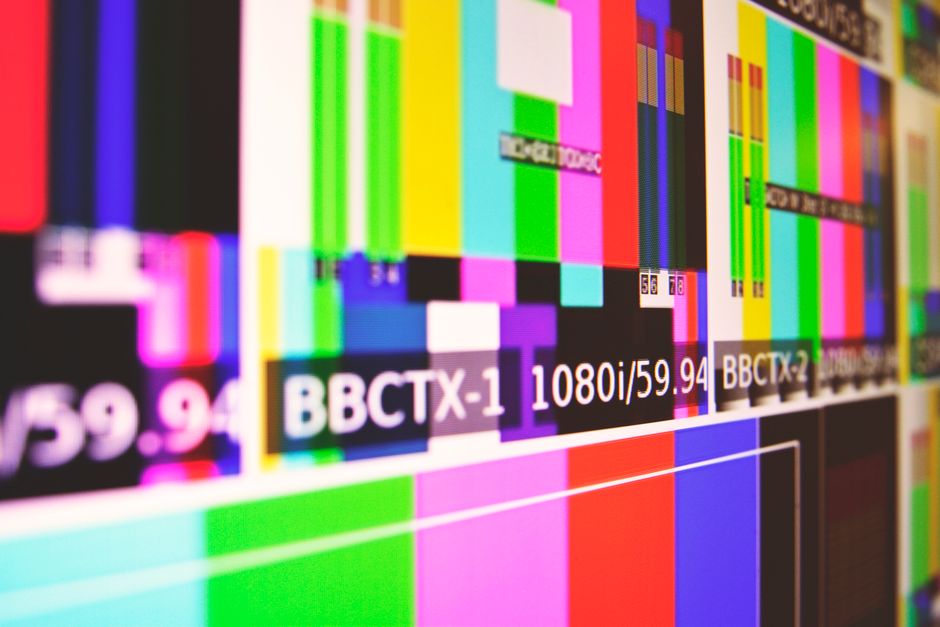
4K is a frame dimension. 3840x2160 pixels, four times the pixel count of 1080p. That is the entire guarantee the label carries.
What fills those pixels is decided by three other specifications, and none of them appear in the word "4K":
- Bitrate: how much data per second is allocated to the picture. This is the one that decides whether detail survives compression.
- Frame rate: how many of those pictures arrive per second. 25, 30, 50 or 60 FPS, and it changes what motion looks like more than resolution does.
- Codec and profile: H.264/AVC, or H.265/HEVC, and within HEVC the profile — Main, or Main 10 for ten-bit colour.
A stream that reports 2160p while carrying 4.5 Mbps at 25 FPS is a real 4K frame containing roughly a quarter of the information it has room for. The player has no way to flag this. It reads the frame dimensions out of the transport stream header and displays them, because that's what the header says.
4K and HDR are also different things, sold together often enough that the difference gets lost. 4K is pixel count. HDR is the range between the darkest and brightest values each of those pixels can hold, and it needs the source, the stream, the player and the panel to all support the same standard. A subscription can deliver genuine 4K with no HDR at all, and a "4K HDR" claim on a sales page usually means neither has been verified end to end.
If any of this is new, the category explainer covers what an IPTV stream is before it reaches the resolution question.
The three numbers that decide whether a 4K feed is real
These are the figures measured on this service, so there's something specific to hold a trial against rather than a general impression of "looks sharp":
| Feed | Resolution and frame rate | Median bitrate |
|---|---|---|
| Sports and events, 4K | 2160p UHD | 19.5 Mbps (HEVC Main 10) |
| Sports, standard | 1080p at 50/60 FPS | 8.6 Mbps (H.264/AVC) or 5.4 Mbps (H.265/HEVC) |
| Backup / low-bitrate | standard definition | fixed ceiling of 2.2 Mbps |
Audio runs at 192 kbps AAC-LC stereo on standard channels and 384 kbps Dolby Digital Plus on native 5.1 broadcast feeds. The keyframe interval on live channels is locked at 2.0 seconds, which governs how fast a channel opens and how fast it recovers after a dropout.
Now the arithmetic that makes the first row meaningful.
A 4K frame holds four times the pixels of a 1080p one. Our 1080p 50 FPS feed runs at 5.4 Mbps on HEVC. Our 4K feed runs at 19.5 Mbps on HEVC — about 3.6 times the data for four times the pixels. That ratio is the honest shape of a 4K stream: slightly less data per pixel than the 1080p feed, made up for by the fact that fine detail compresses efficiently across a denser grid.
Hold that ratio against a 4K stream running at 4.5 Mbps. That's less data than our 1080p HEVC feed is given, spread across four times as many pixels. The encoder has no way to make that work except by discarding detail, which is what produces the blocking and smearing you see on fast motion in a fake 4K feed.
The same two rows also show what a codec is worth. The identical 1080p 50 FPS feed costs 8.6 Mbps on H.264 and 5.4 Mbps on HEVC — a 37% reduction for the same picture. That is why 4K over IPTV is practical at all, and why a provider still encoding everything in H.264 will struggle to carry 4K without either a much larger bitrate or visible compression.
What to ask a provider, in these words: what bitrate and frame rate do your 4K feeds run at, and on which codec profile. A provider that answers with a channel count has answered a different question. The vocabulary here comes from broadcast transport standards, and the DVB specifications are where those terms originate.

How to check a 4K claim in four minutes
Every dedicated IPTV player has a technical readout — usually a long press on the OK button, or an "info" or "stream statistics" overlay. It's the single most useful screen in this category and almost nobody opens it.
The order of operations:
- Open a channel the provider advertises as 4K. Not the demo reel. A live channel you'd actually watch.
- Open the codec readout and record three fields together: resolution, frame rate, and video bitrate. One without the others tells you nothing.
- Compare against the table above. Around 19.5 Mbps at 2160p is a real 4K feed. Under about 8 Mbps at 2160p is an upscale, whatever the channel is called.
- Check the codec line. HEVC Main 10 is what a native 4K broadcast feed usually arrives on. H.264 at 2160p is possible but expensive, and on a budget provider it's a sign the source was converted rather than originated.
- Repeat at 21:00 on a Saturday. Bitrate is not a constant. A feed that holds 19 Mbps on a Tuesday afternoon and drops to 6 Mbps during a fixture is telling you about the provider's peak-hour capacity.
What this looks like when it goes wrong: a viewer bought an event pass marketed as "4K Ultra HD Exclusive" for a major boxing undercard. The player's codec readout showed a stream resolution of 3840x2160 — with a transmission bitrate of 4.5 Mbps and a base frame rate of 25 FPS. The source provider had taken an interlaced 720p satellite relay, run it through a hardware scaler to inflate the frame dimensions, and rebroadcast it with severe compression artefacts. The output carried less dynamic detail and less motion clarity than an uncompressed 1080p feed at 8.6 Mbps.
Upscaling is the cheapest operation in the whole chain — a hardware scaler costs a provider nothing per stream, and the label it produces is indistinguishable from the real thing right up until somebody opens the readout.
One caveat on the method. Some players report the container resolution rather than the decoded one, and a few smart TV apps show no readout at all. If your player won't tell you, that's a reason to use a different player, not a reason to trust the label.

4K sport is a frame rate trade-off, not an upgrade
This is the section that costs us money to write, so here it is plainly: if you're buying a subscription mainly for live football, 4K is probably not the specification to buy on.
84% of premium sports feeds here originate from direct 1080p 50/60 FPS transport streams, and the remaining 16% are 720p 50 FPS fallbacks. 4K on this service is a sports-and-events tier rather than the default for every fixture, and that is broadly how the origination side of this industry works — the broadcasters upstream produce most regular-season sport at 1080p high frame rate, and reserve native 4K for marquee events.
The reason is frame rate. Native 4K broadcast feeds commonly run at 25 or 30 FPS. A 1080p sports feed runs at 50 or 60. On a panning shot across a pitch, or a ball travelling at speed, the number of frames per second does more for what you can actually follow than the number of pixels in each one. Double the frames resolve motion; quadruple the pixels resolve a stationary logo on a shirt.
So the useful question isn't "does this provider have 4K", it's "what does this provider run my competition at". Those are different answers on almost every service.
Where 4K earns its bitrate: cinematic content, documentaries, studio-lit events, anything where the camera is largely still and the detail is in the frame rather than in the movement. Boxing and darts, shot in a controlled venue, hold up well. A wet Tuesday-night league game shot at 25 FPS does not.
A limit worth knowing about: on a large panel at close seating distance, and with a native 4K 50 FPS source available, 4K is genuinely better on both counts at once. That combination exists. It's just much rarer than the sales pages suggest, and it's worth confirming a provider has it for your specific competition before paying for the tier.
The bandwidth figure for 4K is 50 Mbps, sustained, per stream
Two figures, both sustained, both counted per simultaneous stream: 25 Mbps for 1080p at 50 FPS, and 50 Mbps for 4K UHD.
The obvious objection is that our own 4K feeds run at 19.5 Mbps, so why ask for 50. Three words in that first sentence do the work.
Sustained. A speed test opens several parallel connections to a nearby server and reports the best few seconds of the result. A stream pulls continuously for ninety minutes from a server much further away. The threshold that decides whether you see a problem is packet loss: above 0.35%, frame skipping becomes visible, and a line can average well above 50 Mbps while crossing that threshold every couple of minutes.
Headroom. A 19.5 Mbps median is a median. Bitrate on a live encode rises sharply during high-motion sequences, which is exactly when you're paying attention. The gap between 19.5 and 50 is what absorbs those peaks along with whatever else the household is doing.
Per stream. Two 4K televisions want 100 Mbps between them before anything else in the house is counted. More screens than headroom is arithmetic rather than a provider fault. The plans page lists how many simultaneous streams each plan allows, which is a separate limit and easy to confuse with this one.
Those figures sit above the FCC's published broadband speed guide, which puts HD at 5–10 Mbps and 4K at 25+ Mbps. The gap is frame rate and live delivery. Treat the FCC numbers as the floor for on-demand video that can buffer ahead, and the numbers above as what live high-frame-rate transport asks for when it can't.
Where the connection is delivered matters as much as how fast it is. Moving a client from 5 GHz Wi-Fi to a 100 Mbps Ethernet adapter cuts dropped frames by 43% during heavy household traffic, because the constraint indoors is airtime rather than bandwidth — the Wi-Fi Alliance has the detail on why. A 4K stream is the least forgiving thing on a home network, so it's the first one to expose that. Further out, 58% of weekend match-day support tickets here trace to ISP transit peering congestion rather than edge-server saturation, which is a stretch of road no provider and no Ethernet cable can change.
A cheap streaming dongle will bottleneck a 4K stream
High-frame-rate feeds at 8.6 Mbps already demand sustained hardware decoding, and budget sticks run 32% hotter under continuous software decoding before thermally throttling the processor. Point a 19.5 Mbps HEVC Main 10 feed at the same hardware and you're asking substantially more of a decoder that was already the weakest link. Pairing a modern high-refresh 4K television with an underpowered €25 dongle introduces micro-stutter and frame pacing jitter that no server-side optimisation can fix.
The specification that matters is not "supports 4K" on the box. It's whether the device carries hardware HEVC Main 10 decoding, which is a different and narrower claim than hardware HEVC. Ten-bit decoding in software is where cheap hardware falls over, typically forty minutes in, once the chassis has soaked up the heat.
The rest of the device picture, for context: 71% of connections here come from dedicated streaming boxes running Android TV, Apple TV or Fire OS, 21% from smart TV native apps, and 8% from desktop or mobile. That split matters when you're buying, because it tells you which of a provider's setup instructions have been tested by anyone. Dedicated clients also switch channel in an average of 1.3 seconds against 3.8 seconds on rebranded web-wrapper applications, while giving you control over buffer length, audio passthrough and decoder selection — the three settings that make a marginal 4K feed watchable.
The Firestick walkthrough covers where the decoder setting lives on Fire OS, which is the most common device in that 71%.
The limit: for standard definition video, low-bitrate on-demand libraries, or casual viewing on a secondary display, entry-level hardware decoders perform adequately and there's no reason to spend more. This argument is about 4K and high-frame-rate sport specifically. If that isn't what you're buying, ignore it.
The display chain decides what arrives on the panel
Everything above stops at the player. There are two more links after it, and they're the ones nobody checks.
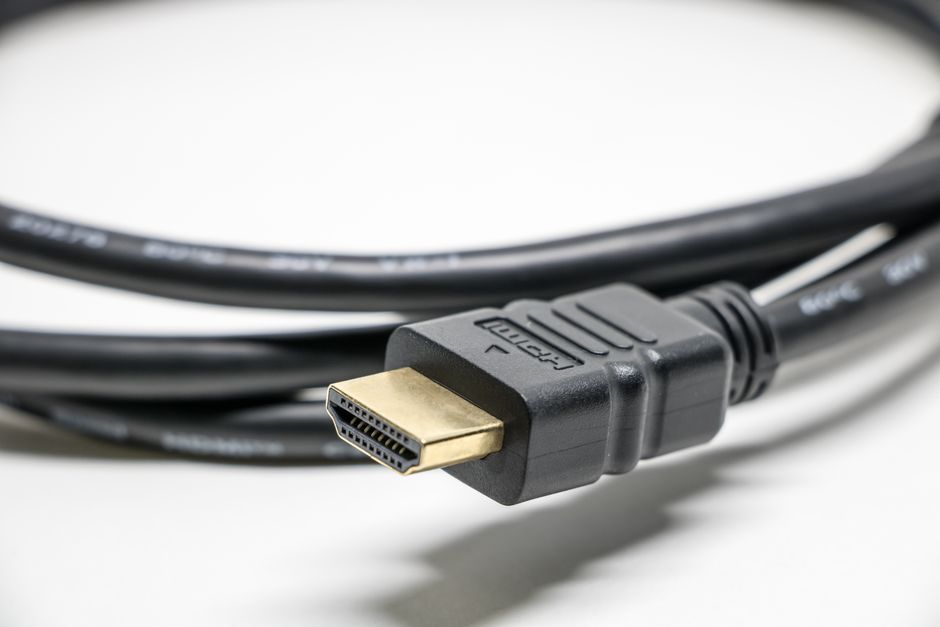
The connection between player and panel. A 4K feed at high frame rate needs an HDMI version and cable capable of carrying it, and the handshake has to succeed for copy protection as well as bandwidth. When it doesn't, the failure is rarely a black screen — it's a silent fallback to a lower resolution or frame rate, with no message on screen. If a verified 4K stream looks like 1080p on the television, check what the TV's own input information panel reports it is receiving, not what the player says it is sending.
The panel's own scaler. This is the one that changes the buying decision. A 4K television upscales everything it's given. Feed it a 1080p 50 FPS stream and it is already producing a 2160p image using a dedicated scaling chip that the manufacturer spent real money on. Feed it a provider's upscaled "4K" and you get the provider's cheap scaler's output, upscaled from a lower-resolution source, with the television's scaler having nothing left to contribute.
Which means a fake 4K feed is usually worse than the equivalent 1080p feed on the same television. You've paid for the label and given up the good scaler to get it.
Picture mode matters here too. Most televisions ship in a showroom preset with motion interpolation and sharpening turned up, both of which do visible damage to a high-frame-rate sports feed. Turn them off before judging a trial, or you're measuring the television's processing rather than the provider's stream.

The 4K settings worth changing in your player
Most of a 4K feed's quality is decided before it reaches you. A few settings on your side decide the rest, and the defaults are wrong for high-bitrate live video more often than not.
- Decoder: hardware, explicitly set. Most players default to "auto", which silently falls back to software when it hits a profile it doesn't recognise. On HEVC Main 10 that fallback is the difference between a stable picture and a device that throttles at half time. Set it to hardware and see whether the channel still plays — if it doesn't, the device can't do 4K on that codec, and no other setting will change it.
- Buffer length: longer than the default for 4K. A 4K stream drains a buffer faster than a 1080p one at the same duration setting, because there's more data per second in it. Two to four seconds is a reasonable starting range on a wired connection, longer over Wi-Fi. The cost is channel-change speed, so it's a genuine trade rather than a free improvement.
- Frame rate matching: on. This tells the television to switch its own refresh rate to match the source instead of converting it. Without it, a 25 FPS 4K feed gets forced into the panel's native rate and picks up judder that looks like a streaming fault.
- Audio passthrough: on, if you have a receiver. The 384 kbps Dolby Digital Plus on native 5.1 feeds only survives if the player hands the bitstream to the receiver rather than decoding it down to stereo first.
The order of operations matters here: change the decoder first and re-test, then the buffer, then the display settings. Changing three at once and getting a better picture tells you nothing about which one did it.
Where each of these lives varies by player and by operating system. The smart TV guide covers the three television platforms and where each one hides them.

What a 4K channel count is counting
Channel count is the headline number in this category and the one with the weakest connection to 4K.
The mechanical problem first. An uncurated playlist of 60,000 or more channels, loaded onto an entry-level streaming stick with 1 GB of memory, produces a 74% out-of-memory crash rate within sixty seconds. The same hardware parsing a curated 5,120 channel list crashes 1.1% of the time. The playlist is a text file the player holds in memory and indexes before it draws a single row of the guide, so its length is a hardware requirement rather than a feature — and it's competing for memory with a decoder that is already working hard on a 4K frame.
For a concrete comparison: the curated primary playlist here carries 5,120 live channels on an average day, and the master download is 12.8 MB in M3U Plus format containing only active channels with valid EPG mappings. 16 broadcast source regions are covered, and four of them — UK, US, DE and FR — account for 74% of total concurrent connections.
Then the bandwidth arithmetic, which is where a "20,000 channels, all in 4K" claim falls apart. A 4K feed costs roughly 3.6 times the origination and delivery capacity of a 1080p HEVC one. Whatever a provider's total is, the proportion of it that can be carried at 19.5 Mbps is bounded by what the provider is paying for transit, and no sales page publishes that number. Treat a large 4K channel claim as unverified until a provider will put a bitrate figure against it.
What to measure during a 4K trial
A trial is the only chance to measure a provider's 4K against your own connection, and most of it usually goes on scrolling the channel list.
Six things to measure, all visible in the player's own readout:
- The codec readout on a live 4K channel. Resolution, frame rate, bitrate and profile together, checked against the table above rather than against the sales page.
- Time to first frame. Measured here at 1.4 seconds on MPEG-TS streams and 2.8 seconds on standard HLS manifests. A 4K channel that repeatedly takes eight seconds to open is a source problem, not a line problem.
- The same 4K channel at 21:00 on a Saturday. Midday on a Tuesday tells you nothing. Peak-hour bitrate is the whole question.
- Two streams at once, if you're buying for more than one room, with at least one of them in 4K. 37% of the active subscriber base runs multiple connections, and this is where both a provider's stream limit and your own line show themselves.
- The guide. How far ahead it runs and whether programmes match what's on. The EPG here refreshes every 4 hours, with 7-day guide accuracy verified at 96.4%.
- The device's temperature after forty minutes. Not with an instrument — just whether the picture that was clean at kick-off is still clean at half time. Thermal throttling shows up as stutter that arrives late and never leaves.
Write down what you measured and when. If a 4K feed holds at midday and falls apart at nine, you've learned something about your ISP's routing rather than about the provider — the buffering guide covers how to tell those two apart before you cancel the wrong thing.
Refunds are the other half of a trial. The refund request rate here inside the 24-hour evaluation window is 2.9%, and that's a figure worth asking any provider for, because a service that can't tell you its refund rate isn't measuring one.

The commercial checks a 4K sales page does not answer
Everything above is technical, and a provider can pass all of it and still be a bad purchase. The commercial checks are a separate list, and they don't change because the tier says 4K.
- Standard credentials. An M3U URL or Xtream Codes API details, so you can run the player that will actually show you a codec readout. 'Our app only' and 'verified 4K' are difficult claims to hold at the same time.
- Payment method. A card or a recognised processor gives you a chargeback route. A gift-card gateway gives you none.
- Billing term. Monthly or quarterly. Paying a year up front to save a couple of euros a month transfers the operational risk to you, and the 4K tier is usually where the annual discount is pushed hardest.
- Simultaneous streams, and what the second concurrent login does — queue, block, or silently disconnect the first device.
Each of those is worked through properly in the wider subscription buying guide, which is the page to read alongside this one. This section exists so you don't finish a bitrate audit and then pay through a gateway your bank has never heard of.

Where 4K sits legally, and what the price tells you
IPTV is a delivery method, not a legal category. It's video carried over standard internet protocols, and the question is always whether the provider holds distribution rights for the channels it carries — the same question that applies to a cable operator, asked about a different wire.
The 4K angle on this is more informative than the general one. Native 4K rights are the most expensive tier a broadcaster sells, and the origination and delivery costs sit on top: a 4K feed at 19.5 Mbps costs roughly 3.6 times the capacity of the 1080p HEVC equivalent. So a service advertising thousands of premium 4K channels at a few euros a month is describing an arrangement that does not add up on either side of the ledger. A cheap SD lineup can be explained several ways. A cheap 4K lineup mostly cannot.
What to look for, in order:
- A specific statement about licensing rather than a general reassurance, and which regions the service is licensed for.
- A lineup that matches that statement. 16 broadcast source regions are covered here, not two hundred, because that's what the arrangements behind it support.
- A price that reflects the delivery cost of the tier being sold, rather than one that only works if nothing upstream is being paid for.
This is not legal advice and it isn't a judgement about any particular service. It's the arithmetic, and the arithmetic is usually the first thing to give the answer away.

Where a 4K subscription is the wrong purchase
Four situations where the honest answer is not to buy the 4K tier.
- A line that can't hold a sustained 50 Mbps. No provider can repair the route between your living room and the street cabinet. Put the money into the connection first, or buy the 1080p tier and get a stable picture instead of an intermittent 4K one.
- Live sport as the main use. Most regular-season sport originates at 1080p 50/60 FPS, and 50 FPS at 1080p beats 25 FPS at 2160p on anything that moves. Buy on frame rate.
- A budget dongle you don't intend to replace. A 19.5 Mbps HEVC Main 10 feed into a €25 stick without hardware ten-bit decoding produces a worse picture than a 1080p feed on the same device. The subscription is the cheaper half of that upgrade.
- A small panel at ordinary seating distance. Whether four times the pixels resolve at all depends on the screen size and how far away you sit. Check that before paying for a tier priced on them — the television is the one part of this chain a subscription can't compensate for.
And the general limit, which applies to us as much as anyone: nobody selling internet-routed video can guarantee a 4K picture at 20:00 on a Saturday. Cable can make that promise because it owns the wire. If that guarantee is what you're buying, this whole category is the wrong shape of product.
What to read before you commit.
- →The wider subscription buying guide — the seven checks that apply to any provider, 4K or not, in the order that rules out the most of them for the least money.
- →Diagnosing IPTV buffering — the five-minute test that separates your Wi-Fi from your ISP from the provider, which is the test to run when a 4K feed stalls.
- →Plans, simultaneous streams and cancellation terms — the stream limits this page tells you to check against your bandwidth, written out for this service.

Straight answers, marked up for Google.
- What internet speed do I need for a 4K IPTV subscription?
- Plan for a sustained 50 Mbps per 4K stream, counted per simultaneous stream rather than per household. That sits well above the 19.5 Mbps a 4K feed typically carries, and the gap is deliberate: bitrate rises during high-motion sequences, and packet loss above 0.35% produces visible frame skipping regardless of average speed. Two 4K televisions want 100 Mbps between them before anything else in the house is counted.
- Why do some '4K' IPTV channels look like HD?
- Because the frame is 4K and the data inside it is not. A provider can pass a 720p relay through a hardware scaler, rebroadcast it at 3840x2160, and every player will report it as 4K. Open the player's codec readout and check the bitrate alongside the resolution: around 19.5 Mbps on HEVC Main 10 is a real 4K feed, while a 2160p stream carrying 4.5 Mbps is an upscale.
- Is a 4K IPTV subscription worth paying extra for?
- It depends almost entirely on what you watch. 4K earns its bitrate on cinematic content, documentaries and studio-lit events, where the camera is largely still and the detail sits in the frame. For live football and most regular-season sport it usually does not, because those feeds originate at 1080p 50/60 FPS and doubled frame rate does more for motion than quadrupled pixel count.
- Do all channels stream in true 4K on a 4K IPTV subscription?
- No, and no provider's whole lineup does. 84% of premium sports feeds here originate as direct 1080p 50/60 FPS transport streams, with 4K reserved for a sports-and-events tier — that reflects how the broadcasters upstream produce the content. Treat a claim of tens of thousands of channels all in 4K as a marketing figure, because a 4K feed costs roughly 3.6 times the delivery capacity of a 1080p HEVC one.
- How do I check whether an IPTV stream is really 4K?
- Open a live channel the provider advertises as 4K, then open the player's technical readout — usually a long press on OK, or a stream statistics overlay. Record resolution, frame rate and video bitrate together, since any one of them alone tells you nothing, and check the codec line for HEVC Main 10. Then repeat the same check at around 21:00 on a Saturday, because peak-hour bitrate is the figure that matters.
- What device do I need for 4K IPTV?
- One with hardware HEVC Main 10 decoding, which is a narrower claim than 'supports 4K' on the box. Ten-bit decoding in software is where cheap hardware fails, typically around forty minutes in, once heat forces the processor to throttle — budget sticks run 32% hotter under continuous software decoding. Dedicated streaming boxes account for 71% of connections here, against 21% on smart TV native apps.
- Can I use a 4K IPTV subscription on more than one device at the same time?
- That depends on the plan's simultaneous stream limit, which is a separate thing from how many devices you set up. Ask what the second concurrent login does — queue, block, or silently disconnect the first device — because the behaviour varies and is rarely written down. Around 37% of subscribers here run multiple connections, and each 4K stream needs its own 50 Mbps of headroom.
- Should I buy a 4K IPTV subscription monthly or annually?
- Monthly or quarterly, and the 4K tier is usually where the annual discount is pushed hardest. Paying twelve months up front to save a couple of euros a month transfers the operational risk to you in a category where upstream relays are restructured without notice, and payment through a gift-card gateway leaves no chargeback route when that happens. Quarterly billing is the balanced position.
These eight questions are also emitted as FAQPage schema in the page head, so search engines can render the answers directly in the results.

Still stuck? Email us.
If you're comparing 4K tiers and want the bitrate, frame rate and codec profile for a specific channel or a specific event, ask for them. Send the competition you actually watch, the device you plan to use, and what a speed test reports at nine in the evening. Those three answers decide whether any 4K subscription in this category is worth your money, this one included.
If you're earlier than that, start with what IPTV is and how it works. If you want the general purchase checks rather than the 4K-specific ones, the wider buying guide has them in order. If you've already bought and the picture keeps stopping, the buffering guide is the diagnostic to run first.