IPTV Buffering Fix: Diagnose It Before You Change Anything

Almost every IPTV buffering fix that works is a network fix, and the five-minute test below tells you whose network. Wire the player in with Ethernet before you change a single setting — it removes the largest variable instead of tuning it. If it buffers at nine in the evening but not at midday, that is your ISP's path at peak, not your subscription. And if the line cannot hold a sustained 25 Mbps, no provider fixes that for you.
Almost every IPTV buffering fix that works is a network fix. Not a player setting, not a reinstall, and almost never a change of provider. The stream is arriving late, or arriving in bursts, and the player stops to wait for it.
Here's the short version. Work out which of the three faults you actually have, run the five-minute test, then wire the player in before you touch a setting. The order is the point. Most lists give you twelve fixes and let you keep whichever one you happened to be on when it started working.
Buffering, freezing and a slow app are three different faults
Three symptoms get filed under buffering. They don't share a cause.
- Buffering — plays, stops to load, plays. The stream is arriving slower than you're watching it.
- Freezing — the picture locks on one frame while the audio runs on, or both stop dead and the channel needs reopening. Usually a broken segment rather than a slow one.
- A slow app — the menus crawl and the guide takes ten seconds to draw, but a channel that starts plays fine. Not a network fault at all.
Sort yours first, because the fix for the third one is clearing the cache and it does nothing whatsoever for the other two. Cache-clearing turns up at step four of nearly every buffering list. (It's there because it's easy to write.)
The five-minute test that tells you whose fault it is
Four checks, in this order. Stop at the first one that answers the question.
- Play three different channels. If most are fine and one or two stutter, the fault is at the provider's end and nothing on your side will change it.
- Play the same channel on a phone, on mobile data, off your Wi-Fi. Clean there and broken on the TV puts the problem inside your house.
- Note the time. Fine at midday and unwatchable at nine is a different fault with a different fix — skip ahead to the ISP section.
- Plug in an Ethernet cable. A borrowed one, across the floor, for ten minutes. If the buffering stops, you have your answer.
Test it, don't guess. Running fixes in sequence until something works is how people end up convinced that a DNS change repaired their Wi-Fi.
Wire it in before you change anything else
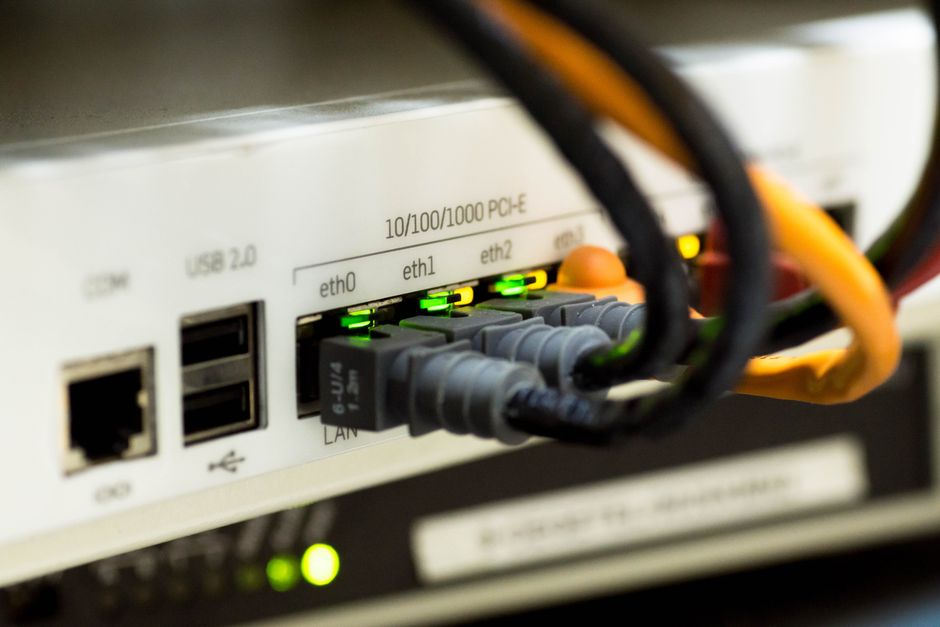
Ethernet is the single most effective thing on this page, and it takes about four minutes.
It works because it removes the variable instead of tuning it. Your player is very likely on the 2.4GHz band, which has the longer range and far more congestion — in a block of flats twenty networks can be competing for the same airtime, alongside every microwave, cordless phone and Bluetooth speaker in the building. The Wi-Fi Alliance has the detail on why. Signal bars measure strength; they don't measure how much of the time everything else is talking, and airtime is the thing you're short of.
If a cable genuinely can't reach:
- Move the player to 5GHz. Shorter range, much more free airtime, and the right choice for anything within a room or two of the router.
- Most sticks and boxes accept a USB Ethernet adapter. A smart TV usually has an RJ45 port on the back already — the smart TV guide covers where to look.
- Powerline adapters are a real option and an inconsistent one, because they depend on your house wiring. Test before you commit to them.
An Ethernet cable running across a hallway has never improved a room. It settles the argument in four minutes, which is the trade.
How much speed a single stream actually needs
These are the FCC's published figures, sustained, per simultaneous stream:
| Quality | Sustained speed needed |
|---|---|
| SD | 3–5 Mbps |
| HD (720p/1080p) | 5–10 Mbps |
| 4K / UHD | 25+ Mbps |
Two words in that sentence do all the work.
Sustained. A speed test opens several connections to a server in your own city and reports the best few seconds of it. A stream pulls continuously for ninety minutes from a server that is probably much further away. A line that tests at 300 Mbps and drops to 15 for four seconds every couple of minutes will pass every test you throw at it and buffer all night, because the dip is the entire problem and the test is built not to see it.
Per stream. Two 4K televisions want 50 Mbps of headroom between them before you count the phone, the console downloading a patch, or the video call upstairs. More screens than headroom is an arithmetic problem, not a provider problem. (The plans page lists how many streams each plan allows — a separate limit, and an easy one to confuse with this one.)

The player settings worth changing, and the ones that aren't
Three settings earn their place:
- Buffer size. Every serious player exposes it, usually in seconds. Raise it and the stream takes longer to start and pauses less often once it's going; lower it and you get the reverse. If your connection dips rather than being flatly too slow, this is the setting that hides the dips.
- Stream format. Players often offer the same channel as HLS or TS. TS is the transport-stream format broadcast has used for decades — the DVB conventions come from that world — while HLS cuts the stream into small files and copes better with an unstable line. Switching takes ten seconds and works more often than it should.
- Hardware decoding. On by default on most boxes. If it's off, the CPU is doing work the video chip should be doing, and an older stick will stutter on 4K regardless of what your connection is doing.
Then there's the one that isn't a fix: stream quality. Dropping 4K to 1080p does stop the buffering, and it also means you are now watching 1080p. It's a workaround for a line that can't hold 25 Mbps. Use it to get through the match, then fix the real thing on Sunday.

Buffering only in the evening is your ISP, not your provider
Fine at noon and unwatchable at nine is the most diagnosable pattern in this whole category, and it has one usual cause: the path between your ISP and the streaming route is congested at peak, roughly 7pm to 11pm. Your speed test still looks perfect, because it runs to a nearby server and the congestion is further along than that.
Two ways to confirm it:
- Run the same stream over a VPN. If the buffering stops instantly, the bottleneck is the ISP path. Nothing else produces that result.
- Test the same channel at midday and at 9pm — same device, same cable — and write both down. That pair of numbers is what an ISP support team will actually act on.
Worth saying plainly: if that's your pattern, changing IPTV provider will not fix it. You'd be buying a second login for the same congested road.
How to tell when it really is the provider's end
Sometimes it is us, or whoever you're subscribed to. The signature is specific:
- A handful of channels stutter and everything else is perfect. A fault at your end doesn't pick favourites.
- The same channels fail from a different house on a different connection. That one is conclusive.
- It starts and ends at a fixed time that matches a big fixture rather than your household's evening.
Nothing on your side fixes any of those, and reinstalling the app in that state mainly costs you your playlist URL. Send the provider the channel names, the times, and the device — those three details skip about four replies. If you don't have the URLs written down anywhere, the Firestick walkthrough shows where the player keeps them.

Four things that do not fix buffering
All four appear on most lists. None of them addresses a stream arriving late.
| The "fix" | What it actually does |
|---|---|
| Clearing the app cache | Speeds up a sluggish app, which is genuinely worth doing — and has no effect at all on a slow stream. |
| Reinstalling the player | Loses your playlist and EPG URLs, then returns you to the same network you started on. |
| Changing DNS | Changes which server you're pointed at, not how fast data arrives from it. Worth trying if lookups are failing. Not a buffering fix. |
| Switching provider | If the line can't hold the bitrate, the new provider inherits the problem and you inherit a second subscription. |
Restarting the router is the honourable exception. It fixes little, costs two minutes, and rules something out. Do it once, then stop doing it.

Nobody can guarantee no buffering, including us
You'll see providers in this category promising zero buffering. Ignore all of them, and read this page as no exception.
The reason is mechanical rather than modest. Between a provider's server and your screen sit your ISP's peak-hour routing, your router, your Wi-Fi band and your player's decoder. That's four things nobody selling you a subscription can see, let alone control, and any one of them can drag a 4K stream below the sustained 25 Mbps it needs on an ordinary Tuesday. A guarantee about hardware in someone else's living room isn't a promise. It's a sales line that survives because it's rarely checked.
Which makes the honest version of this post a short list of people we're wrong for:
- A rural or DSL line that can't hold a sustained 25 Mbps, feeding a 4K set. No provider fixes that. Watch in HD, or put the subscription money into the connection instead.
- You want one competition, on one device. If an official app sells exactly that, buy it — cheaper, licensed, nothing to configure.
- You want a like-for-like cable replacement with a guaranteed picture at 8pm on a Saturday. Nobody in this category is that, and we're not either.
Where to go once the picture holds.
- →How to clear the cache on a Firestick — the fix for the third fault on this page, the sluggish app, with the menus written out and a warning about clear data.
- →Setting up IPTV on a smart TV — where the RJ45 port is on Samsung, LG and Android sets, and why a separate player usually beats the TV's own app.
- →Plans, simultaneous streams and cancellation terms — how many screens you can run at once, which is the other half of the bandwidth arithmetic above.

Straight answers, marked up for Google.
- Why does my IPTV keep buffering even with fast internet?
- Speed tests report the best few seconds of a burst to a nearby server, while a stream needs a steady rate for the whole programme from a server much further away. A line that measures 300 Mbps but drops for a few seconds every couple of minutes will pass the test and still buffer, because the dips are what the player is reacting to.
- Why does my IPTV only buffer in the evening?
- Evening-only buffering on a connection that tests fine at midday points at your ISP's routing during peak hours, roughly 7pm to 11pm, rather than at your player or your provider. If the same stream runs cleanly over a VPN, that confirms it, because the VPN changes the path your traffic takes.
- Does a VPN stop IPTV buffering?
- Sometimes, and it is more useful as a diagnostic than as a fix. If buffering stops over a VPN the bottleneck is your ISP's path, and if it stays the same or gets worse the problem is your own network or the provider. A VPN adds encryption overhead, so it will not help a connection that is simply too slow.
- What internet speed do I need for IPTV without buffering?
- The FCC broadband speed guide puts SD at 3–5 Mbps, HD at 5–10 Mbps and 4K at 25+ Mbps. Those figures are sustained and per simultaneous stream, so two 4K televisions need roughly 50 Mbps of headroom between them before anything else in the house is counted.
- Does clearing the cache fix IPTV buffering?
- No. Clearing the cache fixes a sluggish app — slow menus, a guide that takes too long to draw — and has no effect on a stream that keeps pausing to load. Buffering is a network problem, and clearing storage does not change how fast data arrives.
- Why is my IPTV freezing every few seconds on a Firestick?
- Repeated short freezes usually mean the connection is dipping below what the stream needs rather than being flatly too slow, which is why Wi-Fi congestion is the most common cause. Wire the stick in with a USB Ethernet adapter, or move it to the 5GHz band, before changing any player settings.
- Does increasing the buffer size stop buffering?
- It helps when the connection dips intermittently, because a larger buffer holds more of the stream in reserve and rides out the gaps. It does not help when the connection is consistently below the bitrate the stream needs, since the buffer will empty faster than it can refill.
- Why do some channels buffer while others play perfectly?
- That pattern points at the provider's servers rather than your setup, because a network fault at your end would affect every channel equally. Test three or four channels, note which ones failed and at what time, and report those details instead of reinstalling the app.
These eight questions are also emitted as FAQPage schema in the page head, so Google may show the answers directly in the results. Or not. You never really know with Google.

Still stuck? Email us.
Send four things: which channels buffered, what time it happened, whether the player was wired or on Wi-Fi, and what a speed test said at that same moment. That's enough to tell you whose problem it is in one reply instead of six.
If you're setting up rather than fixing, start with what IPTV actually is. If you're deciding, the plans page lists simultaneous streams and how to cancel in plain words, and the rest of the guides cover each player end to end.