How to Install IPTV on Firestick: Step-by-Step Guide
Enable Apps from Unknown Sources in Settings → My Fire TV → Developer options, install the Downloader app from the Amazon Appstore, sideload an IPTV player, then add your M3U or Xtream Codes details. It takes about ten minutes. Before any of that, check your connection can hold the bitrate — 10 Mbps sustained per HD stream, 25 Mbps for 4K — because that's the part no app can fix.
Installing IPTV on a Firestick takes four steps: turn on sideloading, install Downloader, sideload a player app, then paste in your playlist details. Ten minutes, give or take, and none of it needs a computer.
Here's the short version, and then the part most guides skip.
The install is easy. The install is not usually what goes wrong. Nine times out of ten the person emailing us at midnight has installed everything perfectly and is watching a stream stutter because their player is on a congested 2.4GHz band, or because their connection can't hold the bitrate they've asked it for. So this guide does the setup properly, and then spends real time on the thing that actually determines whether you enjoy the result.
Check your connection before you install anything
Do this first. If the numbers don't clear, nothing below matters and no provider on earth will fix it for you.
You need, per simultaneous stream, sustained:
| Quality | Sustained speed needed |
|---|---|
| SD | 3–5 Mbps |
| HD (720p/1080p) | 5–10 Mbps |
| 4K / UHD | 25+ Mbps |
Those figures come from the FCC broadband speed guide, and two words in that table are doing all the work.
Sustained. A speed test measures a burst to a nearby server for a few seconds. A stream needs the same throughput continuously, from further away. A line that tests at 300 Mbps and dips to 15 Mbps for four seconds every minute will pass every speed test you throw at it and buffer all evening.
Per stream. A 50 Mbps connection running two 4K streams and a video call has nothing left. If four people in the house are watching different things, add the numbers up.
Test at 9pm, not at lunchtime. Peak-hour throttling of streaming traffic is real and common, and it produces the single most confusing symptom in this whole category: a connection that is demonstrably fast whenever you check it and useless exactly when you want to watch something.
What you need before you start
- A Fire TV Stick on current software, and the remote.
- An IPTV subscription with either an M3U playlist URL or Xtream Codes details (server URL, username, password). Your provider sends these — ours arrive by email with the plan.
- Your Wi-Fi password, or better, an Ethernet adapter.
- About ten minutes.
You do not need a computer, a VPN, or a second device. If a guide tells you to start by installing something on a PC, you are reading a guide written for a different decade.
Step 1 — Enable apps from unknown sources
The Firestick will not sideload anything until you tell it to. Developer options are hidden by default, so this is two steps rather than one.
- From the home screen, go to Settings → My Fire TV → About.
- Highlight your device name and press the select button seven times. A message tells you developer options are now available.
- Go back to Settings → My Fire TV → Developer options.
- Open Install unknown apps and turn it on for Downloader. (On older software this is a single Apps from Unknown Sources toggle instead.)
Amazon documents this flow in its Fire TV developer documentation — worth a look if your menus don't match, because the wording has shifted across software versions.
The seven presses feel like a cheat code because they essentially are. If nothing happens, you are on the wrong screen: it has to be the device name inside About, not the Settings row above it.
Step 2 — Install the Downloader app
Downloader is a free utility built for exactly this job, and it is in the official Amazon Appstore — you are not sideloading anything to get it.
- From the Fire TV home screen, open Find → Search.
- Type Downloader and select it from the suggestions.
- Choose Get or Download, then Open.
- Allow it access to media storage when prompted.
That's the whole step. If you enabled unknown apps for Downloader before installing it, go back and check the toggle — the permission sometimes needs setting again once the app actually exists on the device.
Step 3 — Sideload your IPTV player
Now install the app that will actually play your subscription. Open Downloader, put the cursor in the URL field, and enter the address or numeric code your provider gave you.
The two players most people end up on:
| Player | Best for | Watch out for |
|---|---|---|
| IPTV Smarters Pro | Most setups. Handles M3U and Xtream Codes, EPG, multi-screen. | Several imposter sites distribute modified builds — use the link your provider gives you. |
| TiviMate | Heavy users who want a proper channel-guide interface. | The features people actually want are behind a paid upgrade. |
Once the download finishes, choose Install, then Done, then Delete to remove the installer file. Storage on a Firestick is tight and the installer is dead weight the moment it has run.
Only install a player from a link your provider gave you, or from the app's official site. Modified builds of popular IPTV players are a genuinely common way to end up with something unpleasant on your device. If a download link came from a comments section, don't.
Step 4 — Add your playlist
Open your new player and sign in. You have two ways to do it, and which one you use depends entirely on what your provider issued.
Xtream Codes — enter the server URL, username and password as three separate fields. Easier to type on a remote, and the app fetches the guide automatically. Use this if you have it.
M3U playlist URL — one long URL, pasted into a single field. Type it exactly, including the http:// or https:// at the front, and pay attention to the end of it. A trailing slash where there shouldn't be one will fail with an error message that tells you nothing useful.
Then give it a minute. The first channel-list load pulls the whole catalogue and is always the slowest one.
If the guide is blank but channels play
This confuses more people than anything else on the list, so it is worth stating plainly: the EPG comes from a different URL to your channel list, and the two expire independently.
Working channels plus an empty guide is almost never a billing problem. Ask your provider for the current EPG URL, enter it in the player's settings, and force a manual guide refresh. The DVB standards define the metadata format, which is why the same EPG generally behaves the same way across different players.
Where the picture quality actually comes from
Two things, and neither is the app.
The band your Firestick is on. 2.4GHz has longer range and far more congestion — it shares spectrum with microwaves, cordless phones, Bluetooth, and every neighbouring network in the building. In a block of flats you can easily have twenty networks competing for the same airtime. 5GHz has shorter range and much more room. If your router broadcasts both, get the Firestick onto the 5GHz one. The Wi-Fi Alliance has the technical detail if you want it.
Distance to the router is rarely the problem. Airtime is. A stick two metres from the router on a congested channel will do worse than one across the hall on a clear one.
Whether it's wired. Ethernet removes the variable completely, and it is the single most effective buffering fix there is. An Ethernet adapter for a Firestick costs very little. A cable running across the hallway is not a design choice anyone is proud of, but it settles the argument permanently.
Two things the other guides don't tell you
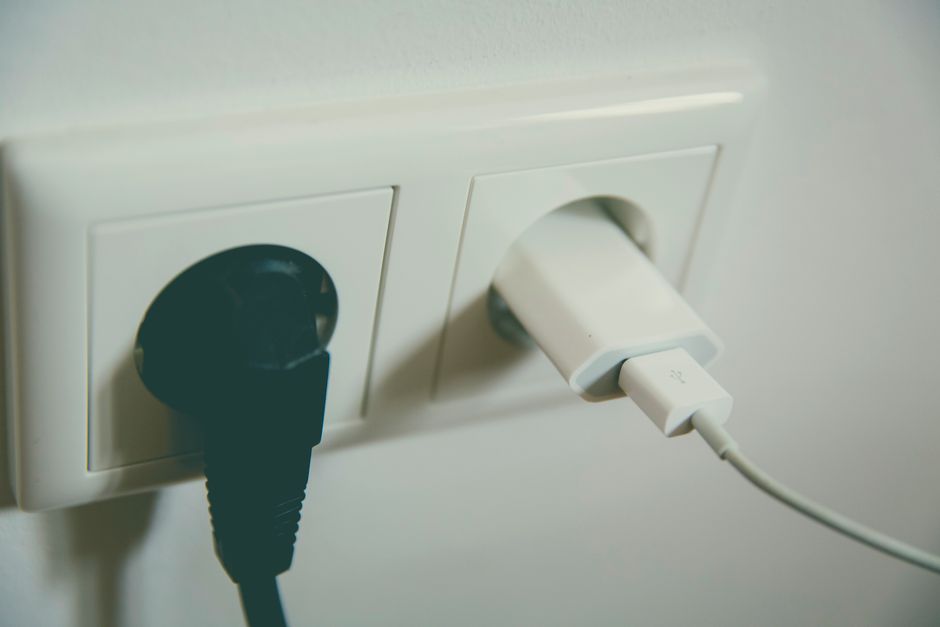
Don't power the stick from your TV's USB port. It seems tidy and it causes a specific, maddening fault: the stick loses power when the TV goes off, then boots faster than the network comes back, and fails its first fetch. The symptom is "it stopped working overnight" and the fix is a wall socket. Use the supplied adapter.
An underpowered stick will stutter on 4K no matter how good your connection is. This is the opinion I'll back with the numbers above: people blame the provider for a decode bottleneck constantly. If you have cleared 25 Mbps sustained, wired the device in, and 4K still breaks up while HD is flawless, the stick is the bottleneck, not the stream. A basic Fire TV Stick is not a 4K device and no subscription changes that.

When a Firestick is the wrong answer
Worth saying plainly, because this is the part that costs us subscriptions.
- If your line can't hold 25 Mbps sustained and you want 4K, don't buy a subscription from anyone yet. Fix the connection first. Switching provider will change nothing, and you'll have spent money to learn that.
- If you only want one specific competition or channel, a single official app is almost always cheaper and better than an IPTV subscription. We are the wrong answer for that and pretending otherwise helps nobody.
- If your setup depends entirely on 2.4GHz Wi-Fi in a crowded building and you can't wire it in, expect stuttering whoever you buy from. That is a physics problem, not a product problem.
If none of those apply, you are in good shape, and the plans page has the terms written in plain words including how to cancel.
The other pages worth two minutes.
- →Plans, device limits and cancellation terms — including a plain list of the setups we're the wrong choice for, which is the section most worth reading before you pay anyone.
- →Every setup and troubleshooting guide — the same treatment for Android TV, Apple TV, Smart TV and VLC as they get written.
- →What Streamline TV actually is — the short version, including the bandwidth floor, on the home page.

Straight answers, marked up for Google.
- Is it legal to sideload apps on a Firestick?
- Sideloading itself is a standard Fire TV feature that Amazon documents, and installing an app this way is not unlawful. What matters is the content you then stream and whether the provider holds the rights to distribute it. Check what your provider is licensed to carry.
- How much internet speed do I need for IPTV on a Firestick?
- Per simultaneous stream, sustained: 3–5 Mbps for SD, 5–10 Mbps for HD, and 25+ Mbps for 4K, per the FCC broadband speed guide. 'Sustained' and 'per stream' both matter — a connection that speed-tests well can still dip below the threshold during playback.
- Why does my IPTV buffer on a Firestick when my internet is fast?
- Usually the Wi-Fi band or the time of day. 2.4GHz is heavily congested in flats and terraces, so move the stick to 5GHz or wire it in with an Ethernet adapter. If it buffers only between roughly 7pm and 11pm on a connection that tests fine at midday, the bottleneck is your ISP's path rather than your equipment.
- What is the Downloader app and do I need it?
- Downloader is a free utility in the official Amazon Appstore that fetches and installs app files on Fire TV. You need it because the Firestick has no other built-in way to install an app that isn't in the Appstore. You are not sideloading anything to obtain Downloader itself.
- What's the difference between an M3U playlist and Xtream Codes?
- They are two formats for the same subscription. M3U is a single long URL pasted into one field. Xtream Codes splits it into a server address, username and password, which is much easier to type on a remote and usually pulls the programme guide automatically. Use Xtream Codes if your provider offers it.
- My channels work but the TV guide is empty. What's wrong?
- The electronic programme guide comes from a separate URL to your channel list, and the two expire independently. Working channels with a blank guide is almost never a billing fault. Ask your provider for the current EPG URL, enter it in the player settings, and run a manual guide refresh.
- Can I install IPTV on a Firestick without a computer?
- Yes. The entire process runs on the Firestick itself using the Downloader app and the remote. Any guide that starts by telling you to install software on a PC is describing an older and unnecessary method.
- Will a basic Fire TV Stick handle 4K streams?
- No. The non-4K models can't decode 4K regardless of how fast your connection is. If HD plays perfectly and 4K breaks up on a connection that clears 25 Mbps sustained, the device is the bottleneck and a different subscription will not change that.
These eight questions are also emitted as FAQPage schema in the page head, so Google may show the answers directly in the results. Or not. You never really know with Google.
Still stuck? Email us.
If the app installed but nothing plays, work through it in this order: wire the device in or move it to 5GHz, clear the player's cache, re-enter the playlist URL, then ask your provider whether the URL has changed. That sequence resolves the overwhelming majority of them.
If you're still stuck after that, email us with your player, your device, and what your connection does at 9pm rather than at midday. That last detail saves about three replies.